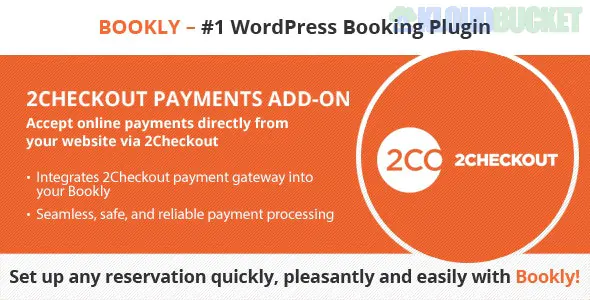
The Bookly 2Checkout (Add-on) is a powerful integration that allows you to accept global credit card payments directly through your Bookly booking form. It connects your website to the Verifone (formerly 2Checkout) payment gateway, which is highly valued by international businesses because it supports over 87 currencies and works in many countries where other gateways (like PayPal or Stripe) might have limitations.
[!IMPORTANT]
Requirement: All Bookly add-ons, including the 2Checkout module, require Bookly PRO to be installed and activated on your WordPress site.
Global Payments: Accept major credit cards, debit cards, and PayPal from customers worldwide.
Seamless Checkout: Customers complete their payment during the booking process, ensuring the appointment is only confirmed once paid.
Price Correction: You can set a fee or a discount (fixed amount or percentage) that is automatically applied when a customer chooses to pay via 2Checkout.
Sandbox Mode: Includes a testing environment so you can verify the payment flow without using real money.
Tax Integration: If you use the Bookly Taxes (Add-on), this module can transmit tax information directly to the 2Checkout gateway.
Setting up the integration typically takes just a few minutes:
Purchase and download the add-on from the Bookly website or CodeCanyon.
In your WordPress dashboard, go to Plugins > Add New > Upload and install the ZIP file.
Activate the plugin.
Log in to your 2Checkout Merchant Account.
Navigate to Integrations > Webhooks & API.
Locate your Merchant Code (also called Seller ID or Account ID) and your Secret Word.
Copy these credentials.
In your WordPress sidebar, go to Bookly > Settings > Payments.
Find the 2Checkout section and toggle it to Enabled.
Paste your Merchant Code and Secret Word.
Set Sandbox Mode to "No" for live transactions (or "Yes" for testing).
Click Save.
Payment Timeout: You can set a time interval after which an unpaid appointment is automatically rejected. This prevents your calendar from being "blocked" by users who start a booking but never finish the payment.
Front-end Order: You can drag-and-drop the 2Checkout option in the Settings > Payments list to change its priority on your booking form (e.g., making it the first choice above "Local Payment").
Would you like me to help you troubleshoot a specific connection error, or would you like to know how to set up the "Price Correction" feature for your services?
Bookly Initial Setup and Payment Tutorial
This video provides a comprehensive guide on how to install and activate Bookly add-ons and manage the initial payment settings within your WordPress dashboard.
Subscribe to access unlimited downloads of themes, videos, graphics, plugins, and more premium assets for your creative needs.
.jpg) Help Us to Buy More New Theme/Plugin
Help Us to Buy More New Theme/Plugin
Published:
Jan 20, 2026 13:55 PM
Version:
v2.8
Category:
Author:
OtherLicense:
GPL v2 or LaterTags: