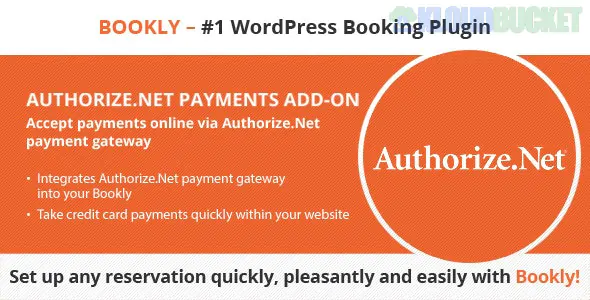
The Bookly Authorize.Net (Add-on) is a professional payment integration that allows your customers to pay for their appointments using credit cards directly on your website. Since Authorize.Net is one of the most trusted and long-standing payment gateways (especially in North America), this add-on is ideal for businesses that require high security and a seamless checkout experience.
[!IMPORTANT]
Requirement: Just like the 2Checkout add-on, this requires Bookly PRO to be installed and active on your WordPress site.
Direct Credit Card Entry: Customers enter their card details directly into the Bookly booking form rather than being redirected to an external site.
Akamai Integration: Supports Authorize.Net's Akamai network for enhanced reliability and faster transaction processing.
Sandbox Testing: Includes a "Test Mode" so you can simulate successful and failed transactions without charging a real card.
Price Correction: You can automatically apply a percentage or fixed fee/discount if a customer chooses Authorize.Net as their payment method.
Tax Support: Fully compatible with the Bookly Taxes (Add-on) to send tax breakdowns to your merchant account.
To get your payments running, follow these steps:
Log in to your Authorize.Net Merchant Interface.
Go to Account > Settings > API Credentials & Keys.
Copy your API Login ID.
Create and copy a Transaction Key (you may need to verify your identity via email to generate a new one).
In your WordPress dashboard, navigate to Bookly > Settings > Payments.
Find the Authorize.Net section and toggle it to Enabled.
Paste your API Login ID and Transaction Key.
Set Sandbox to "Yes" for testing or "No" for live sales.
Save Changes.
Feature
2Checkout
Authorize.Net
Best For
Global businesses (87+ currencies)
US/Canada-based businesses
Customer Experience
Often a modal or redirect
On-page credit card form
Setup Difficulty
Medium (requires Secret Word)
Easy (standard API keys)
Account Fees
Usually no monthly fee
Often has a monthly gateway fee
If your payments are failing even with correct keys:
Check Currency: Ensure the currency set in Bookly > Settings > Payments matches one of the currencies supported by your Authorize.Net account (typically USD, CAD, GBP, EUR, AUD).
Transaction Type: Ensure your Authorize.Net account is set to "Live" in their dashboard, even if you have "Sandbox" set to No in Bookly.
Would you like me to help you configure the "Payment Timeout" settings so unpaid appointments are automatically cleared from your calendar?
Subscribe to access unlimited downloads of themes, videos, graphics, plugins, and more premium assets for your creative needs.
.jpg) Help Us to Buy More New Theme/Plugin
Help Us to Buy More New Theme/Plugin
Published:
Jan 20, 2026 13:54 PM
Version:
v2.0.6
Category:
Author:
OtherLicense:
GPL v2 or LaterTags: