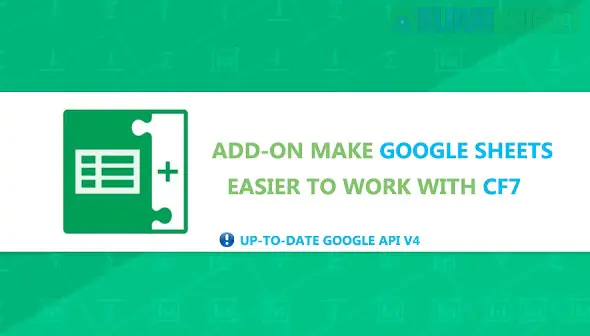
Integrating Contact Form 7 (CF7) with Google Sheets is one of the most effective ways to manage leads and automate data entry without checking your email for every submission.
There are several highly-rated addons available in 2026. Here are the top recommendations based on their features and ease of use:
Addon
Best For
Key Features
GSheetConnector for CF7
Ease of Use
One-click authentication, real-time sync, and support for special mail tags (IP, date).
WPSyncSheets
Advanced Control
Freeze headers, custom row formatting, and syncing entries after payment (PayPal/Stripe).
Tablesome
Workflows
Build complex automation workflows; integrates multiple forms into one sheet easily.
Uncanny Automator
No-Code Automation
Connects CF7 to 1,000+ other apps alongside Google Sheets without per-task fees.
The GSheetConnector for CF7 is the most popular "bridge" plugin. It is a freemium tool that allows you to send data to your spreadsheets immediately upon form submission.
Real-time Syncing: Submissions appear in your sheet the second the user clicks "submit."
Simple Mapping: You just copy your CF7 mail tags (like [your-name]) into the first row of your Google Sheet.
Pro Version Perks: Includes automated sheet creation directly from WordPress and the ability to sync historical data (entries submitted before you installed the plugin).
If you choose a standard connector like GSheetConnector, follow these steps:
Prepare Your Google Sheet:
Create a new Google Sheet.
In the first row, enter your column headers. These must match your CF7 mail tags (e.g., date, your-name, your-email, your-message).
Authenticate WordPress:
Install the plugin and go to Contact > Google Sheets.
Click Get Code to authorize your Google account. Copy the provided access code and paste it into the plugin settings.
Link the Specific Form:
Edit your desired form in Contact > Contact Forms.
Open the new Google Sheets tab.
Enter your Sheet Name and Tab Name (e.g., "Sheet1") exactly as they appear in Google.
Test the Connection:
Fill out your form on your website. The data should appear in your spreadsheet within seconds.
If your form just "spins" and never sends after integration, it is usually due to a naming mismatch. Ensure there are no extra spaces in your Google Sheet tab name and that your column headers exactly match the mail tags in your CF7 "Form" tab.
Would you like me to help you create a specific field-mapping list for your form, or would you like to explore how to add file upload links to your sheet?
Subscribe to access unlimited downloads of themes, videos, graphics, plugins, and more premium assets for your creative needs.
.jpg) Help Us to Buy More New Theme/Plugin
Help Us to Buy More New Theme/Plugin
Published:
Jan 21, 2026 12:00 PM
Version:
v1.1.7
Category:
Author:
OtherLicense:
GPL v2 or LaterTags: