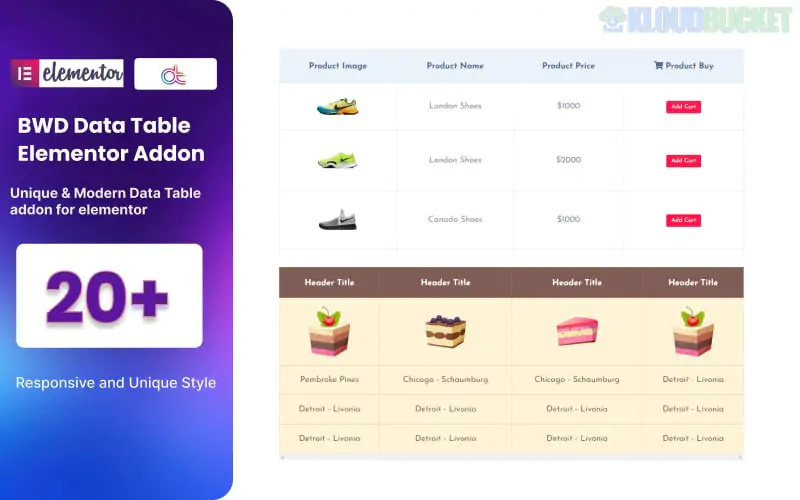
A Data Table Addon for Elementor is a specific type of widget or plugin extension designed to help you create, manage, and style complex tables within the Elementor page builder. Since Elementor does not have a native "Data Table" widget in its free version, these addons are essential for displaying structured information like pricing comparisons, schedules, or technical specifications.
While there are many specific plugins with this name, they generally fall into two categories: Dedicated Table Plugins (like TablePress) or All-in-One Addon Packs (like Essential Addons or ElementsKit).
Data Sources: Look for the ability to import data from CSV files, Google Sheets, or TablePress. Manual entry is fine for small tables, but tedious for large ones.
Live Search & Filtering: Allows visitors to type in a search box to find specific rows instantly.
Sorting & Pagination: Users can click column headers to sort (A-Z or High-Low) and navigate through "pages" of data if the table is long.
Responsiveness: Good addons provide a "Responsive Mode" that either turns the table into a scrollable area or stacks the cells vertically on mobile devices.
Cell Merging: Support for RowSpan and ColSpan, which allows you to merge cells horizontally or vertically for complex layouts.
Multimedia Support: The ability to insert images, icons, and buttons directly into table cells.
Addon Name
Best For...
Key Advantage
Essential Addons (EA)
General Use
Highly customizable and very popular; supports CSV import.
ElementsKit
All-in-One
Includes a powerful Data Table widget plus 90+ other widgets.
Happy Addons
Advanced Data
Supports live Google Sheets syncing—update the sheet, and the site updates automatically.
PowerPack Addons
Ease of Use
Very user-friendly interface for merging cells and styling headers.
WP Table Builder
Complex Tables
A standalone drag-and-drop table builder that integrates with Elementor via shortcodes.
Install the Addon: Install a plugin like Essential Addons or Advanced Data Table for Elementor.
Drag & Drop: Open your page in Elementor and search for "Data Table" in the widget panel.
Choose Your Source: * Select Manual to type data cell-by-cell.
Select CSV/Google Sheets to upload or link an external file.
Style the Layout: Use the Style tab in Elementor to change colors, add "Zebra Striping" (alternating row colors), and adjust typography.
Enable Interactions: In the Settings or Content tab, toggle on "Enable Search" or "Enable Sorting" to make the table interactive.
Would you like me to help you decide which specific addon is best for your data type (e.g., a price comparison vs. a large employee directory), or should I explain how to sync a Google Sheet to your table?
Subscribe to access unlimited downloads of themes, videos, graphics, plugins, and more premium assets for your creative needs.
.jpg) Help Us to Buy More New Theme/Plugin
Help Us to Buy More New Theme/Plugin
Published:
Jan 23, 2026 14:02 PM
Category:
Author:
OtherLicense:
GPL v2 or LaterTags: