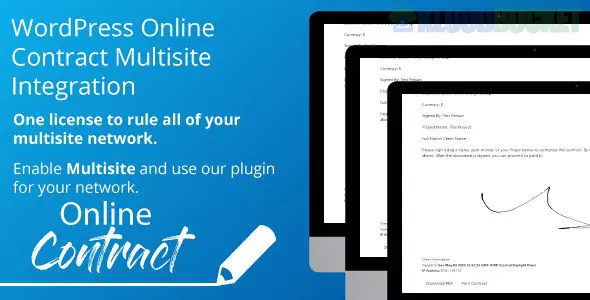
Implementing WP Online Contract on a WordPress Multisite network is a great way for agencies or multi-department organizations to centralize contract management. However, because multisite shares a single database and core file structure, there are specific behaviors you should expect.
In a Multisite environment, you have two primary ways to deploy the plugin:
How: Go to Network Admin > Plugins and click Network Activate.
Result: The "Contracts" menu will appear on every subsite in your network automatically.
Best For: When every site in your network (e.g., different branches or franchises) needs to issue its own contracts.
How: Keep the plugin deactivated in the Network Admin. Then, go to the specific subsite’s dashboard and activate it there.
Result: Only the chosen sites will have contract functionality.
Best For: Agencies where only the "Billing" or "Main" subsite handles legal documents.
Isolated Contracts: Even though the plugin is on a network, contracts are not shared between sites. A contract created on site1.example.com will not be visible to the admin of site2.example.com.
Independent Settings: Each subsite maintains its own API keys (for Stripe/PayPal), custom email templates, and signature settings. This allows each "branch" to have its own branding and bank account connection.
Shared Users: Because WordPress Multisite shares a user table, a client registered on the network can potentially be assigned as a "Client" on any subsite without creating a duplicate account.
Most premium WordPress plugins (including WP Online Contract and its extensions) have specific licensing rules for Multisite:
Single License: Usually covers one subsite or a local/staging environment.
Developer/Agency License: Required if you want to receive updates for all subsites across the network.
Add-ons: If you are using the Stripe or Automated PDF add-ons, these must be installed at the Network level but configured individually on each subsite where they are needed.
File Storage: Signed PDFs are stored in the wp-content/uploads/sites/X/ folder (where X is the Site ID). Ensure your server permissions are correctly configured for these subdirectories so PDFs generate and save properly.
Permalinks: Multisite requires "Pretty Permalinks" to function. If your subsite URLs aren't structured correctly, the unique contract links sent to clients might lead to 404 errors.
Are you looking to have a "Master Dashboard" where you can see all contracts from all subsites at once, or do you need help setting up unique payment gateways for each subsite?
Subscribe to access unlimited downloads of themes, videos, graphics, plugins, and more premium assets for your creative needs.
.jpg) Help Us to Buy More New Theme/Plugin
Help Us to Buy More New Theme/Plugin
Published:
Feb 02, 2026 09:41 AM
Version:
v1.0.2
Category:
Author:
OtherLicense:
GPL v2 or Later