This plugin is a game-changer for anyone running events, workshops, or tours using WooCommerce. It bridges the gap between a digital sale and a physical check-in by turning every "Order" into a scannable ticket.
While several plugins share similar names, the WooCommerce Event QR Code Email Tickets functionality essentially transforms your WordPress site into a professional ticketing platform like Eventbrite.
🎟️ Core Functionality
How it works in the real world:
The Purchase: A customer buys a ticket (a WooCommerce product) on your site.
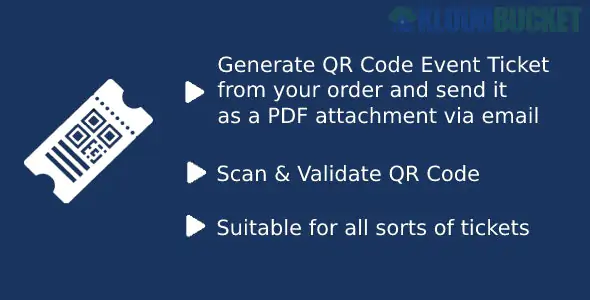
The Email: Once the payment is confirmed, the plugin automatically generates a unique QR Code and attaches it to the customer's order email.
The Event: At the door, the customer shows the email on their phone. You (the organizer) scan it using a smartphone or a dedicated scanner.
The Verification: The system instantly validates the ticket, marks it as "Checked-in" in your database to prevent duplicate entries, and shows the attendee's details.
✨ Key Features
Unique QR Generation: Each ticket gets a one-of-a-kind code that cannot be easily forged.
Automatic Delivery: No manual work. The ticket is sent as soon as the WooCommerce order status changes to "Completed" or "Processing."
Multiple Tickets per Order: If a customer buys 5 tickets, the plugin can generate 5 unique codes for each guest.
PDF Attachment: Most versions allow you to attach the ticket as a PDF, which is easier for customers to save or print.
Customizable Email Templates: You can brand the ticket email with your event logo, date, and location.
🛠️ Setup & Implementation
To get this running effectively, follow these steps:
Product Configuration: In WooCommerce, create your event as a "Virtual" and "Downloadable" product. This ensures no shipping is charged.
QR Settings: In the plugin settings, choose where the QR code should appear (e.g., Before Order Table or Footer).
The Scanner App: Most modern versions don't require a special app. You simply log into your WordPress site on your phone's browser and use the "Scan" interface provided by the plugin.
Testing: Always run a test purchase with a $0.00 "Coupon" to ensure the email arrives and the QR code renders correctly in different email clients (Gmail, Outlook, etc.).
🚀 Pro Tips for Organizers in 2026
Offline Mode: If your event is in a place with poor cell service (like a basement or a park), look for versions of the plugin that allow you to download an Attendee List as a backup.
Check-in Statistics: Use the plugin's dashboard to see real-time data on how many people have arrived vs. how many tickets were sold. This is great for managing venue capacity.
Branding: Don't just send a raw QR code. Use the email template to include a "Thank You" message or a "What to Bring" checklist to improve the attendee experience.
Security: Enable the "Restrict Scanner" setting so that only specific WordPress user roles (like "Editor" or "Event Staff") can validate codes.
⚠️ Common Pitfall: Image Rendering
Some email providers block images by default. To ensure your customers see their QR codes:
Ensure your site has an SSL Certificate (HTTPS).
Use a reliable SMTP plugin (like WP Mail SMTP) to ensure your emails don't end up in the spam folder, which often breaks image links.
Would you like me to help you configure the email template for a specific event, or do you need a recommendation for a free mobile app to use as your scanner
Subscribe to access unlimited downloads of themes, videos, graphics, plugins, and more premium assets for your creative needs.
.jpg) Help Us to Buy More New Theme/Plugin
Help Us to Buy More New Theme/Plugin
Published:
Feb 02, 2026 10:47 AM
Version:
v1.4
Category:
Author:
OtherLicense:
GPL v2 or Later